Debug a JavaScript function together
A teammate has a shopping-cart total that joins strings instead of adding prices. Use one file for the function and another for examples, then work through the fix together.
- Create a pad. Choose a display name if prompted. Set the language to JavaScript and rename the first tab to
cart.js. - Invite your teammate. Open share, copy the edit link, and send it. They can open it in another browser without an account.
- Add a second file. Use the new-file button to create
examples.js. Write the inputs and expected results there. - Review the change. Start with string prices, discuss why JavaScript joins them, and convert each price to a number. Use the labeled cursors to follow each other.
// cart.js
export function subtotal(prices) {
  return prices.reduce((sum, price) => sum + Number(price), 0);
}

// examples.js
subtotal(['12.50', '7.50']); // Expected: 20
subtotal([]);               // Expected: 0
The comments show expected results. Codepad does not execute the function. Run it in your local JavaScript environment when you want to verify the output.
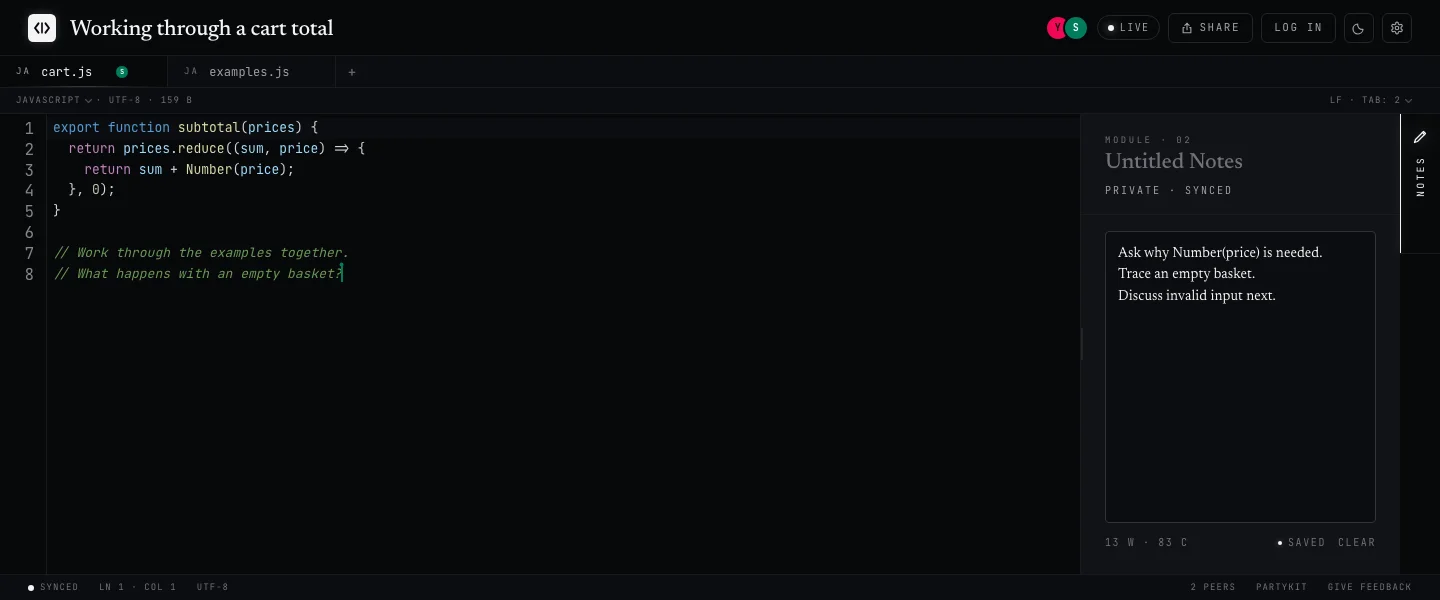
Keep the discussion beside the code
File tabs keep related snippets under one link. Each participant can use the private notes panel for questions or observations without adding them to the shared code. Editor settings include Vim, Emacs, and VS Code keybindings.
For a practice interview, use the sample exercise and interview rubric. For someone who should only view the code, send a separate read-only link.
What happens when the connection drops?
The connection indicator shows whether the editor is live. Edits synchronize while connected, and the service periodically saves a snapshot. A live connection is not a separate confirmation that every recent edit has reached storage.
If you go offline, keep the tab open and wait for it to reconnect before closing or reloading. Copy important work elsewhere if the connection cannot be restored. Offline changes in an open tab are not a durable backup.
Read how saving and browser identity work before using a pad as the only copy of your work.
When this editor fits
Codepad is useful for a small debugging session, discussing an API response, reviewing a snippet, or teaching a concept. You bring the code and the conversation. There is no terminal, compiler, package installation, or project runtime inside the pad.
Choose a full development environment when you need to execute a project or manage its dependencies. Use Codepad when a shared code editor is enough.